
Claude Code Login on a Headless VPS: Fix Redirect URI and OAuth Errors
Running claude over SSH and waiting for the laptop's browser to hand the login back is the usual first attempt, but the callback listens on the VPS, so paste the code instead. If the sign-in page rejects the request ("Redirect URI … is not supported by client"), make a setup-token on a laptop, then try an API key; "Invalid OAuth Request" usually means the URL was cut, so copy it with c.
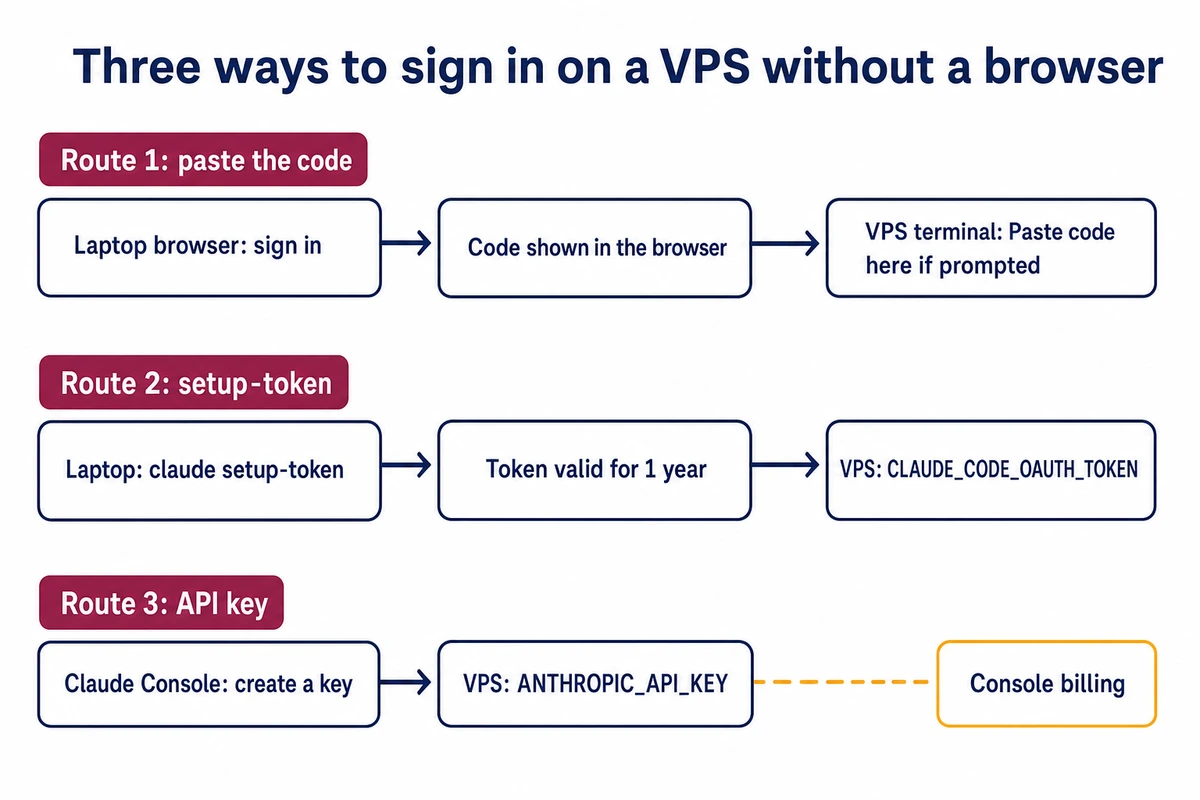
A Claude Code login on a server without a browser has three supported routes, numbered below: a pasted sign-in code, a one-year token from claude setup-token, and a Console API key. A rejected redirect happens before you ever see a code, which is why it skips Route 1.
The flags and prompts quoted below were observed by installing Claude Code 2.1.319 and Codex CLI 0.167.0, the current npm releases, in a clean test environment on November 9, 2026. Error messages from GitHub reports are credited to their issues. The steps fit any Linux box you reach over SSH, such as a KVM VPS kept on as a remote dev box. Examples use the user dev and the host vps.example.com (203.0.113.10); put your own names in their place.
Claude Code login errors over SSH and what causes each one
Match your message to a row; the Where column says whether it came from the browser or the VPS terminal.
| What you see | Where | Likely cause | What to do |
|---|---|---|---|
| Login page loads, then nothing returns to the terminal | Browser | Expected over SSH: the redirect cannot reach the VPS | Paste the code (Route 1) |
Redirect URI https://platform.claude.com/oauth/code/callback is not supported by client. | Browser, after “Authorization failed” | The authorization server rejects the code-paste redirect | Token from your laptop (Route 2) or API key (Route 3) |
Invalid OAuth Request with Invalid response_type: missing. Expected: 'code' or Missing scope parameter | Browser | The URL reached the browser incomplete | Copy it with c or from claude auth login |
OAuth error: Invalid code. Please make sure the full code was copied | Terminal | Code expired or was cut while pasting | Start again and paste promptly |
OAuth authentication is currently not supported. (API Error 401) | Terminal | An OAuth token placed in ANTHROPIC_AUTH_TOKEN | Use CLAUDE_CODE_OAUTH_TOKEN |
This organization has been disabled (API Error 400) with an active plan | Terminal | An old ANTHROPIC_API_KEY overrides your subscription | Unset the key |
Row one is the ordinary SSH case. On the VPS, Claude Code opens its OAuth callback listener on 127.0.0.1 with a port the system assigns for each attempt, and that address exists only inside the server. To see it, run ss -ltnp | grep claude in a second SSH session while the login waits; the port changes from one attempt to the next.
For that reason, the URL Claude Code gives you to copy uses a different redirect, to platform.claude.com, which shows a code in the browser for you to paste back. Anthropic’s install and login troubleshooting page describes exactly this for WSL2, SSH sessions and containers.
“Redirect URI is not supported by client”
Switch routes rather than retrying the same URL, because nothing on the VPS fixes a rejected redirect. Run claude setup-token on a laptop that has a browser (Route 2). There the browser returns to Claude Code through its local listener, and the code-paste redirect is not part of the flow. If the laptop gets the same rejection, use an API key (Route 3).
GitHub reports of this message cover Claude Code 2.1.79 through 2.1.267, from desktops as well as from an Ubuntu VPS and an HPC cluster reached over SSH. In issue #93216 one reporter’s 2.1.251 signed in on September 9, 2026 and failed the next day with no local change, and according to the thread, downgrading did not help. Reporters read it as a server-side rejection, and the docs we checked on November 9 do not list it. The laptop route is not a guaranteed way out either: one commenter on issue #36215 saw the localhost redirect rejected the same way.
“Invalid OAuth Request” and a URL cut by line wrapping
Both variants name a parameter the server did not accept. Issue #29983, filed from Docker containers on 2.1.63, tied them to the login URL’s parameters on that version and notes that terminal line wrapping can also truncate the URL. In 2.1.319, the setup-token URL runs across five lines in an 80-column window, and response_type and scope both sit after the first break. Select only the top line and the server sees a request without them, which produces one of these two messages.
Route 1: copy the login URL and paste the code back
Use this route for interactive work on a Pro, Max, Team or Enterprise plan. Install with the native installer, which puts the binary at ~/.local/bin/claude and updates itself in the background:
ssh dev@vps.example.com
curl -fsSL https://claude.ai/install.sh | bash
claude --version
claude auth login- claude auth login prints “Opening browser to sign in…”, then “If the browser didn’t open, visit:” and the full URL, then waits at Paste code here if prompted >.
- Open that URL in the browser on your laptop and sign in with the account that holds the plan.
- The browser shows a code instead of redirecting. Copy all of it.
- Paste it at the prompt in the SSH window and press Enter. claude auth login reads the code from standard input, which helps when a terminal’s paste shortcut does not reach the interactive prompt.
Inside the full-screen claude session the same flow runs from /login; press c to copy the URL. On a VPS with no clipboard tool, that copy reaches your terminal as an OSC 52 escape sequence, which some terminals block by default; iTerm2 needs clipboard access allowed in its settings.
Sign in before you start tmux: inside tmux, Claude Code 2.1.319 puts the copied URL in the tmux paste buffer instead of sending it to your laptop. For Console (API billing) accounts, run claude auth login –console; the code step is the same.
Check the sign-in
claude auth status; echo "exit $?"A working subscription login prints JSON with “loggedIn”: true and “authMethod”: “claude.ai”, and the exit code is 0; without a usable credential the command exits with 1. Inside a session, /status shows the same login and marks any credential that is configured but not in use. Routes 2 and 3 reuse this check.
Why an SSH tunnel to the localhost callback does not apply here
Forwarding a port with ssh -L needs a port number you know before you connect. Claude Code’s docs name no fixed callback port, and the 2.1.319 listener takes whatever port the kernel assigns at each attempt. The copied URL does not use localhost at all, so the pasted code covers the case a tunnel would. Codex CLI listens on localhost port 1455 by default, so a tunnel does work there.
Route 2: claude setup-token and CLAUDE_CODE_OAUTH_TOKEN for unattended runs
A /login credential that expires and cannot refresh stops an agent that runs at 3 a.m. until someone signs in again. For cron jobs and claude -p runs, Anthropic’s authentication documentation offers claude setup-token, which mints a one-year OAuth token tied to your subscription, so it needs the same paid plans as Route 1.
Run it on the laptop. It opens the same browser flow as /login. The token prints once and is stored nowhere. Copy it straight into a root-owned file on the VPS:
# on the VPS
sudo install -m 600 -o root -g root /dev/null /etc/claude-agent.env
sudo nano /etc/claude-agent.env
# one line inside:
# CLAUDE_CODE_OAUTH_TOKEN=your-token
systemd reads EnvironmentFile before it switches to the service user, so dev never needs read access to the file:
# /etc/systemd/system/claude-todo.service
[Unit]
Description=Claude Code TODO summary

[Service]
Type=oneshot
User=dev
WorkingDirectory=/home/dev/app
EnvironmentFile=/etc/claude-agent.env
ExecStart=/home/dev/.local/bin/claude -p "List the open items in TODO.md"
StandardOutput=append:/home/dev/claude-todo.log
Test it with sudo systemctl start claude-todo, read /home/dev/claude-todo.log, then schedule it for 03:00 nightly:
# /etc/systemd/system/claude-todo.timer
[Unit]
Description=Run claude-todo nightly

[Timer]
OnCalendar=*-*-* 03:00:00
Persistent=true

[Install]
WantedBy=timers.target
sudo systemctl daemon-reload
sudo systemctl enable --now claude-todo.timer
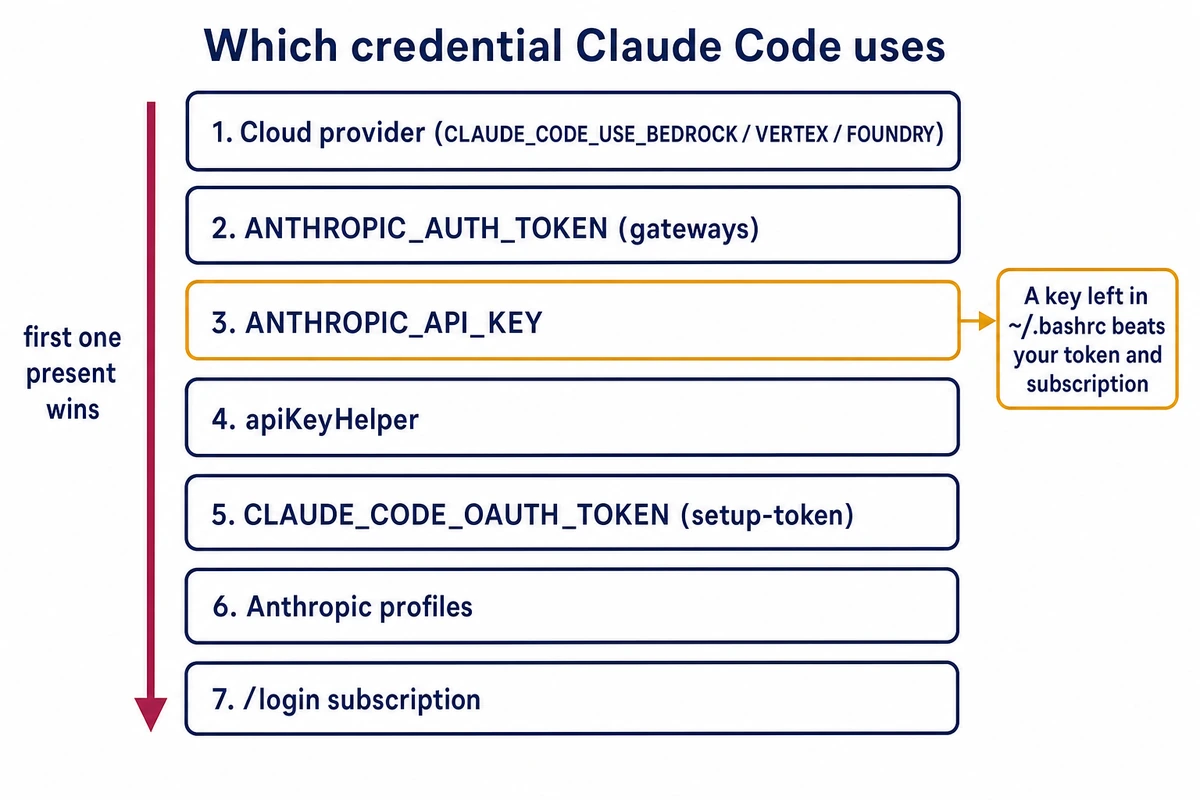
systemctl list-timers claude-todo.timerA systemd unit runs its command without a shell, so it never reads the exports in ~/.bashrc. A forgotten ANTHROPIC_API_KEY in that file therefore cannot override the token and move the job onto Console billing. In an interactive shell with the token exported, the check from the end of Route 1 should report “authMethod”: “oauth_token”.
Model requests are all this token covers. Remote Control and claude.ai connectors need a regular claude.ai sign-in, so a job that depends on them stays on Route 1. MCP servers, which give Claude Code extra tools and data sources, still work when defined locally on the VPS, so they do not change the choice. –bare does: Anthropic’s minimal startup mode for scripts skips the auto-discovery of hooks, plugins, MCP servers and CLAUDE.md, and never reads CLAUDE_CODE_OAUTH_TOKEN, so a –bare job belongs on Route 3. Write the creation date in your calendar: at the one-year mark, generate a new token, replace the line and restart the job.
Route 3: ANTHROPIC_API_KEY on the server, billed through the Console
A key from the Claude Console needs no OAuth flow at all, which makes it the fallback when the redirect error blocks both other routes. Usage goes on the Console organization’s bill.
The catch is that Claude Code picks a credential in a fixed order, and ANTHROPIC_API_KEY ranks above both CLAUDE_CODE_OAUTH_TOKEN and a /login subscription. With -p it uses the key whenever one is set, and a stale key from an old project then produces the “organization has been disabled” error from the table.
- Create a key on the API keys page of the Claude Console and copy it once.
- For a systemd job, put ANTHROPIC_API_KEY=your-key in the root-only /etc/claude-agent.env from Route 2, in place of the token line rather than next to it.
- For an interactive shell, type it with read -rs ANTHROPIC_API_KEY && export ANTHROPIC_API_KEY, so the key never lands in shell history.
- Run the check from the end of Route 1. It should report “authMethod”: “api_key”; the first interactive session also asks you to approve the key.
To find a stale key that overrides your subscription, look at what is active and where the variable comes from:
claude auth status --text      # which credential is active
grep -n ANTHROPIC_API_KEY ~/.bashrc ~/.profile
unset ANTHROPIC_API_KEY
One more trap: ANTHROPIC_AUTH_TOKEN is meant for LLM gateways that take bearer tokens, and a subscription token pasted there fails with the 401 above.
Still failing after a clean sign-in
When a Claude Code login keeps failing on the VPS, work through these documented steps in order and stop at the first one that changes the result:
- Update. Native installs take claude update; npm installs need npm install -g @anthropic-ai/claude-code@latest. Compare claude –version with the version in the issue you are matching.
- Reset the login: run /logout, quit, start claude again and sign in. Logging out also clears saved MCP sign-ins.
- Check the clock with timedatectl. Token validation depends on correct time, so the output should show the system clock as synchronized.
- Test with a clean directory: CLAUDE_CONFIG_DIR=~/.claude-test claude keeps its own credentials, which rules out a damaged ~/.claude/.credentials.json.
- Run claude doctor for read-only install and settings diagnostics.
Skip the edits to the CLI’s own code that some issue threads pass around; the next update overwrites them, and nobody has reviewed the patched client. If the redirect error persists on the laptop as well, it is an account question for Anthropic support, reached through Get help in claude.ai.
Keep sessions alive and tokens out of reach
An SSH drop ends a foreground claude session. tmux keeps it running on the VPS:
tmux new -s agent        # start, then run claude inside
# detach with Ctrl+b, then d
tmux attach -t agent     # reattach after reconnecting
Claude Code 2.1.319 also has claude –bg, which starts a background session and prints an id for claude attach. Both stop when the credential expires. Since 2.1.318, claude auth status reports the end date of a stored claude.ai login as loginExpiresAt. A weekly cron entry can print it:
sudo apt install -y jq    # if jq is not installed yet
claude auth status --json | jq -r '.loginExpiresAt'
The field reads null when the active credential is a setup-token, whose date you track yourself. Claude Code also warns three days ahead with “Your login expires in 3 days · run /login to renew”.
- Check permissions with stat -c ‘%a %n’ ~/.claude/.credentials.json. It should read 600, as Claude Code writes it.
- Keep tokens out of shell history. Type them with read -rs CLAUDE_CODE_OAUTH_TOKEN, then export CLAUDE_CODE_OAUTH_TOKEN, rather than writing them on the command line.
- Never commit an env file, and never paste a token into a ticket or an issue report. If an API key leaks anyway, delete it in the Console at once.
- None of these logins needs an inbound port beyond SSH. Restrict port 22 to your own address in the VPS control panel’s firewall, and keep the panel’s VNC console in mind if a rule locks you out.
Use key-only SSH and automatic security updates on the VPS. Our walkthrough for hardening Ubuntu 24.04 before any workload takes about half an hour.
Codex CLI login on the same headless VPS
Codex CLI handles the server case more directly. A plain codex login starts a local server on port 1455 and ends with the hint “On a remote or headless machine? Use `codex login –device-auth` instead.” OpenAI’s Codex authentication docs recommend that device code flow, still marked beta, for remote and headless machines.
npm install -g @openai/codex     # or: curl -fsSL https://chatgpt.com/codex/install.sh | sh
codex login --device-auth
codex login status
The CLI prints a link and a one-time code that expires in 15 minutes. Open the link on the laptop and sign in, then type the code. For a personal account, device code login must first be enabled in ChatGPT’s security settings. In a workspace, an admin turns it on in workspace permissions.
If device code is not available to you, OpenAI documents two fallbacks. One forwards the fixed callback port, so here a tunnel does work: connect with ssh -L 1455:localhost:1455 dev@vps.example.com, run codex login on the VPS and open the printed URL on the laptop. The other copies a login made on the laptop, which works only if the laptop saved it to ~/.codex/auth.json rather than to an OS credential store:
ssh dev@vps.example.com 'mkdir -p ~/.codex'
scp ~/.codex/auth.json dev@vps.example.com:~/.codex/auth.json
ssh dev@vps.example.com 'chmod 600 ~/.codex/auth.json'
For API billing, pipe the key in through stdin. A ChatGPT login draws on your plan, while a key switches Codex to standard API pricing:
read -rs OPENAI_API_KEY && export OPENAI_API_KEY
printenv OPENAI_API_KEY | codex login --with-api-key
unset OPENAI_API_KEY
OpenAI says to treat ~/.codex/auth.json like a password, because it holds access tokens. The cli_auth_credentials_store setting in ~/.codex/config.toml takes file, keyring, auto or ephemeral. With auto, a server that has no OS credential store falls back to the file, so the 600 permissions and the firewall rule above matter for both CLIs.
If you are setting up a remote dev box for this, size it for Anthropic’s 4 GB RAM minimum plus whatever runs beside Claude Code. Pick a plan of at least that size from the Hostry VPS catalog, filtered by country and city; plans start at $6 a month at the time of writing, with Ubuntu 24.04 images and full root.
Related reading for other agents on the same server: how Hermes Agent and OpenClaw compare as self-hosted agents.