
Coolify vs Dokploy vs CapRover: Which Self-Hosted PaaS to Pick

Coolify vs Dokploy is a close call on one VPS: Coolify is fully Apache 2.0 and fits solo developers who want automatic panel updates, while Dokploy suits teams that may grow into a Docker Swarm cluster. CapRover is the pick for the smallest server and the simplest setup if you can live with one shared password and paid-only 2FA.
Each of these panels installs in a few commands, and each dashboard can run any container as root, so the choice is a security decision as much as a feature one. Each needs a Linux KVM VPS with full root access and ports 80 and 443 to itself. Commands and table cells below were checked against the docs and GitHub repositories on October 29, 2026.
What a self-hosted PaaS does (and when Docker Compose is enough)
A self-hosted PaaS is a Heroku alternative that runs on your own server. A Git push triggers a Docker image build, swaps the running container and routes traffic through a reverse proxy that renews Let’s Encrypt certificates on its own. The same dashboard creates database containers and holds environment variables and logs.
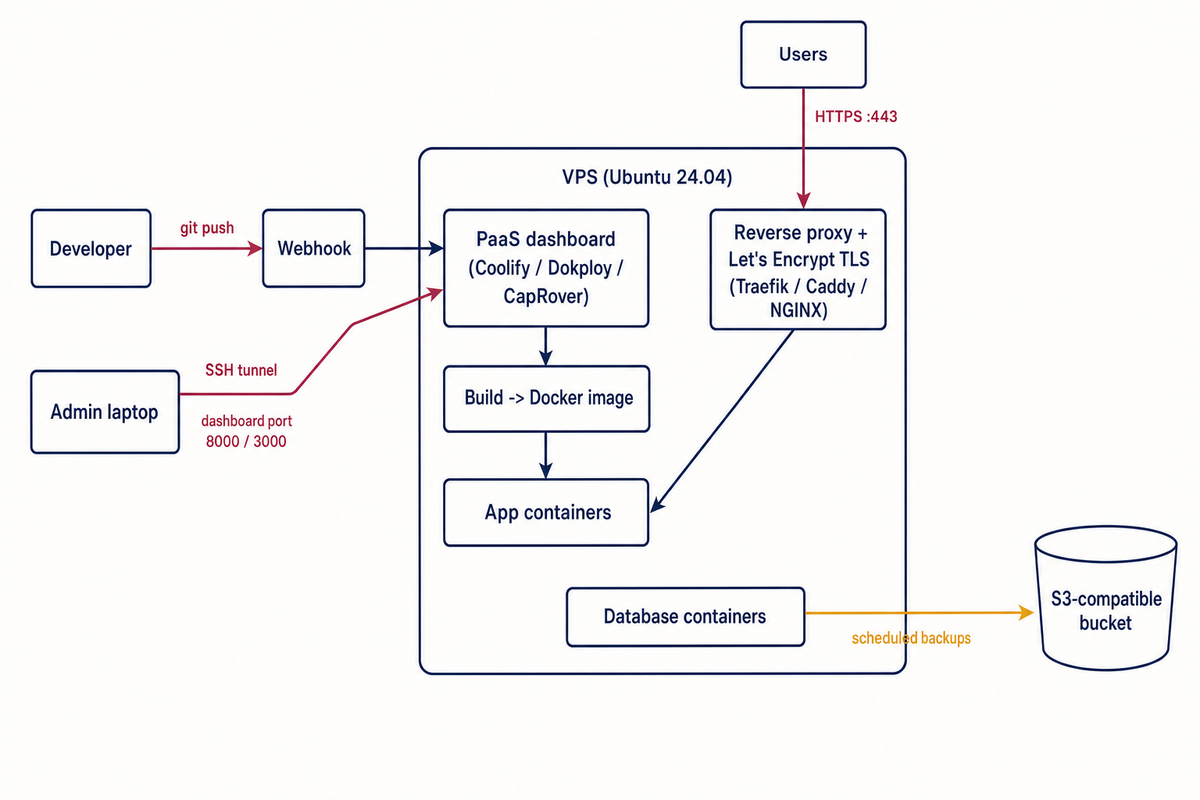
For one or two services that change a few times a year, a docker-compose.yml plus Caddy or Traefik is lighter and has less to patch. A PaaS earns its RAM when you deploy Docker apps on a VPS several times a week, host projects for other people or want pull-request previews, which Coolify and Dokploy have built in. Dokploy’s docs advise against previews on public repositories, since outsiders could then trigger builds on your server.
Coolify vs Dokploy vs CapRover at a glance
Release tags and rounded template-repository counts as of October 29, 2026:
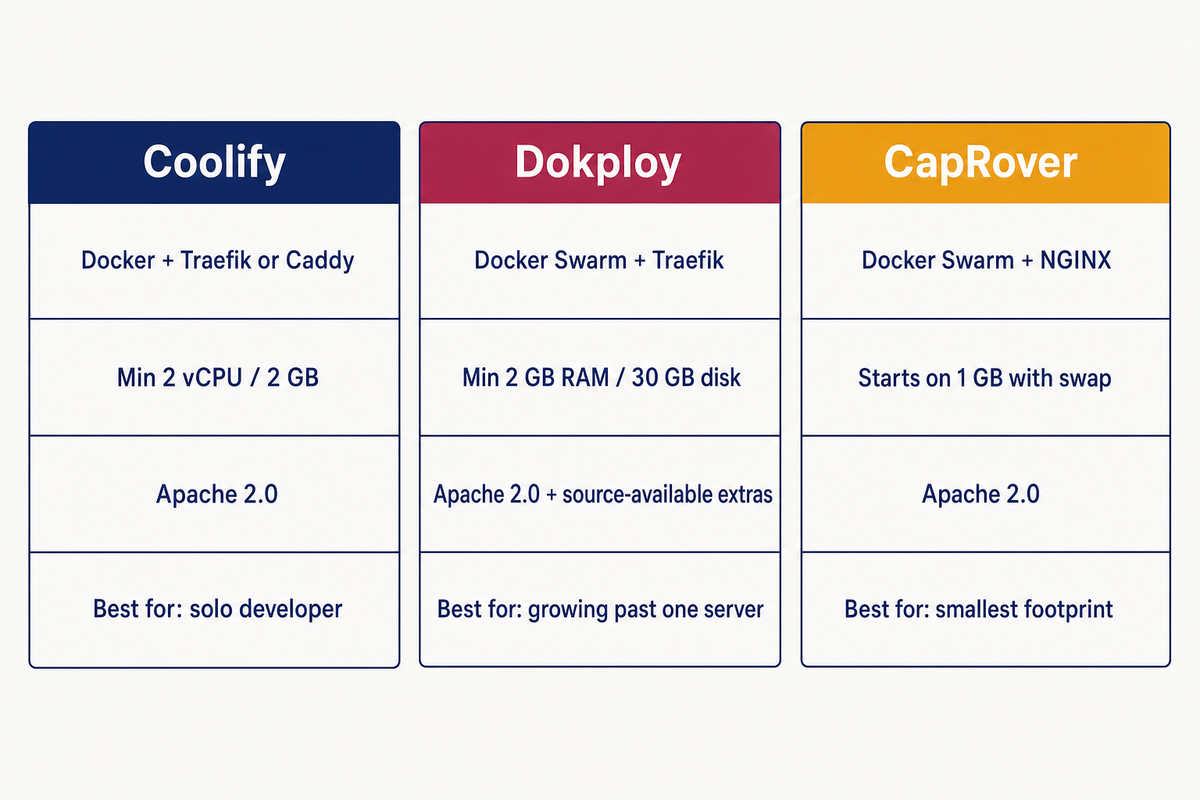
| Feature | Coolify | Dokploy | CapRover |
|---|---|---|---|
| License | Apache 2.0 | Apache 2.0, except code in /proprietary folders (source-available DSAL) | Apache 2.0; paid Pro add-on |
| Latest release | v4.5.3, Oct 28, 2026 | v0.30.10, Oct 22, 2026 | v1.15.5, Oct 23, 2026 |
| Runs on | Docker; Swarm deprecated, removal planned for v5 | Docker Swarm (single node by default) | Docker Swarm |
| Proxy and TLS | Traefik (default) or Caddy, automatic Let’s Encrypt | Traefik, Let’s Encrypt per domain | NGINX with Certbot (Let’s Encrypt) |
| Git deploys | GitHub App, GitLab, Bitbucket, Gitea, webhooks | GitHub, GitLab, Bitbucket, Gitea | Webhook per app, or caprover deploy from the CLI |
| Docker Compose | Yes (Compose build pack) | Yes, native | Supported subset, marked experimental |
| After a bad deploy | Manual rollback to an older image still on the server | Automatic Swarm rollback if health checks fail (needs a /health endpoint); manual registry-based rollback | One-click rollback to an earlier image version |
| One-click templates | 350+ | 580+ | 360+ |
| Database backups to S3 | Scheduled: PostgreSQL, MySQL, MariaDB, MongoDB, ClickHouse, SQLite | Scheduled, to S3 destinations; volume backups too | No; only CapRover’s own config is backed up |
| More than one server | Remote servers over SSH; multi-server deploys need an external load balancer | Remote deploy and build servers over SSH; Swarm nodes | Swarm worker nodes |
| Users and 2FA | Teams with roles; TOTP 2FA | Owner, admin and member roles; TOTP 2FA and passkeys | One dashboard password; 2FA only in Pro |
| Dashboard port before a domain is set | 8000 (plus 6001, 6002) | 3000 | 3000 |
| Official minimum | 2 CPU cores, 2 GB RAM, 10 GB disk | 2 GB RAM, 30 GB disk | No fixed figure; docs warn 512 MB may fail during builds |
All three list Ubuntu 24.04 among tested systems. Two CapRover rows are easy to miss: its Compose support covers only a subset of the specification, and it has no scheduled database backups, so you schedule dumps for its databases yourself.
Which one should you pick?
- Solo developer with a few side projects: Coolify, because everything is Apache 2.0 and updates can run unattended.
- A small agency can use Coolify teams or Dokploy roles. Dokploy’s separate build servers help when client builds stall live sites, though its SSO and audit logs need a commercial agreement in production.
- Smallest footprint: CapRover, on 1-2 GB with swap, for a handful of apps you deploy from the CLI.
- Outgrowing one server: Dokploy, because Swarm is its native mode and it adds remote deploy and build servers over SSH. Coolify is dropping Swarm in v5 and points you to multi-server deployments behind an external load balancer.
If Coolify vs Dokploy is still a toss-up, decide by node count. On a fresh 4 GB VPS today we would install Coolify, for its license and because its installer can create the admin account up front; Dokploy wins once you expect a second or third node within the year.
When not to self-host a PaaS
Skip it if nobody will apply panel updates within days of an advisory; both Coolify and Dokploy shipped critical fixes in 2026. Skip it for a single static site that a Compose file already serves, and for data whose only copy would sit on the panel’s VPS. If you need mailboxes, DNS zones and FTP accounts for customers instead of app deploys, a hosting control panel is the better tool; see our guide to choosing a control panel for a VPS.
How much VPS do Coolify, Dokploy and CapRover need?
On RAM, Coolify vs Dokploy is a tie on paper: the published Coolify VPS requirements and Dokploy’s both start at 2 GB RAM for the panel alone, and apps, databases and builds come on top. For scale, the Coolify docs describe a maintainer’s 2 vCPU / 4 GB server whose images are all built elsewhere; it averages 2.6 GB in use. That server runs 16 static sites, about two dozen small Rust services, PostgreSQL and two Valkey instances. Dokploy says its panel uses about 250 MB when it only manages remote servers. Our sizing:
- 2 vCPU / 2 GB: the floor for Coolify or Dokploy. Enough to learn the panel and run one or two small apps.
- 4 vCPU / 4 GB: where we would start for real projects that build on the same server.
- CapRover can begin smaller, on 1 GB with a swap file, which its docs suggest when builds run out of memory.
Coolify’s docs separate what can run from what they recommend. It can start on 1 core and 512 MB, but the docs do not recommend that; if cost is the concern they suggest 1 core and 1 GB, upgrading as the server slows down. The 2 GB figure is the official minimum, and it is the one we size from.
The 2 GB tier we recommend for Coolify or Dokploy starts at $7/mo (2 vCPU) in the Hostry VPS catalog at the time of writing. The 4 GB tier (4 vCPU) starts at $20/mo, and a 1 GB plan for CapRover at $6/mo (1 vCPU), with prices varying by location. Check the disk too, since Dokploy asks for 30 GB. Resources can be scaled up later, so starting at 2 GB and moving to 4 GB when builds slow down works.
Run one PaaS per server. All three bind ports 80 and 443, and the Dokploy installer exits if anything already listens on 80, 443 or 3000. Building in CI and deploying a finished image, which all three support, keeps build spikes off a small box.
Install on Ubuntu 24.04: Coolify, Dokploy and CapRover
Start from a fresh server and secure the new Linux VPS first: sudo user, SSH keys, UFW, Fail2ban and automatic updates. Wherever deploy (the sudo user), 203.0.113.10 (the server IP) or example.com appears in a command, put in your own value. One trap applies to all three: Docker writes its own iptables rules, so a port a container publishes stays reachable even when UFW denies it, as the Docker, Coolify and Dokploy docs all warn. Block dashboard ports in your VPS control panel firewall or with ufw-docker, and test from another machine.
Coolify
By default, Coolify manages even its own server over SSH as root, using a key it creates during installation. If you disabled root login completely, allow key-only root login before you install, which is the setting the Coolify docs ask for:
sudo sed -i 's/^PermitRootLogin no$/PermitRootLogin prohibit-password/' /etc/ssh/sshd_config.d/00-hardening.conf
sudo sshd -t && sudo systemctl reload ssh
Install with the admin account already created
The docs warn that whoever opens the registration page first becomes admin, with root on the server. The installer can create that account up front:
 sudo env ROOT_USERNAME=admin \
ROOT_USER_EMAIL=you@example.com \
ROOT_USER_PASSWORD='Change-Me-2026!' \
bash -c 'curl -fsSL https://cdn.coollabs.io/coolify/install.sh | bash'
Use a real email address and your own password of at least 8 characters with upper and lower case, a digit and a symbol. If either fails validation, the installer skips the account and the registration page stays open.
The command starts with a space on purpose: Ubuntu’s default ~/.bashrc sets HISTCONTROL=ignoreboth, so bash does not save it, password included, to history.
Once the script prints its “Congratulations” message, copy /data/coolify/source/.env somewhere safe off the server: its APP_KEY encrypts values in Coolify’s database, and a restore fails without it. The full requirement list is on the Coolify self-hosted installation page.
First login through a tunnel, then a domain
ssh -N -L 8000:127.0.0.1:8000 -L 6001:127.0.0.1:6001 -L 6002:127.0.0.1:6002 deploy@203.0.113.10Run it on your own computer, open http://localhost:8000 (6001 carries live updates, 6002 the web terminal) and turn on 2FA in your profile. Then point an A record for coolify.example.com at the server and enter https://coolify.example.com in Settings → General → URL. When that loads over HTTPS, the docs allow you to close 8000, 6001 and 6002 to the public. For the first app, add an A record for app.example.com, create a resource from your repository through the GitHub App, enter https://app.example.com under Domains and redeploy; the proxy requests the certificate.
Dokploy install
The script refuses to run without root, installs Docker if it is missing, initializes a single-node Docker Swarm and starts Dokploy, its PostgreSQL database and Traefik:
curl -sSL https://dokploy.com/install.sh | sudo shThe Dokploy installation guide sends you to port 3000 for the first visit; we prefer a tunnel, ssh -N -L 3000:127.0.0.1:3000 deploy@203.0.113.10, then http://localhost:3000. Create the admin account at once, then enable 2FA or a passkey under Settings → Profile.
Point dokploy.example.com at the server and set it with a Let’s Encrypt certificate under Settings → Web Server. Once the panel answers over HTTPS (not before, or you lock yourself out), remove the direct port:
sudo docker service update --publish-rm "published=3000,target=3000,mode=host" dokployFor the first app, create a project and an application from a GitHub repository (connect GitHub under Git providers). On Domains enter app.example.com and the container port, switch HTTPS on, choose letsencrypt as the certificate, then deploy.
CapRover
CapRover expects Docker 25 or newer already installed and warns against the snap package. Docker’s own apt repository for Ubuntu works:
sudo apt update
sudo apt install ca-certificates curl
sudo install -m 0755 -d /etc/apt/keyrings
sudo curl -fsSL https://download.docker.com/linux/ubuntu/gpg -o /etc/apt/keyrings/docker.asc
sudo chmod a+r /etc/apt/keyrings/docker.asc
sudo tee /etc/apt/sources.list.d/docker.sources <<EOF
Types: deb
URIs: https://download.docker.com/linux/ubuntu
Suites: $(. /etc/os-release && echo "${UBUNTU_CODENAME:-$VERSION_CODENAME}")
Components: stable
Architectures: $(dpkg --print-architecture)
Signed-By: /etc/apt/keyrings/docker.asc
EOF
sudo apt update
sudo apt install docker-ce docker-ce-cli containerd.io docker-buildx-plugin docker-compose-plugin
Without changes, CapRover starts with the password captain42. Its best-practice page suggests setting your own at install time with DEFAULT_PASSWORD:
sudo docker run -p 80:80 -p 443:443 -p 3000:3000 -e ACCEPTED_TERMS=true -e DEFAULT_PASSWORD='Change-Me-Too-2026' -v /var/run/docker.sock:/var/run/docker.sock -v /captain:/captain caprover/caproverBefore the setup wizard, create a wildcard A record, *.apps.example.com pointing to 203.0.113.10. CapRover does not officially support proxied DNS such as Cloudflare’s orange cloud. Then, on your own computer with Node.js installed:
npm install -g caprover
caprover serversetup
Enter apps.example.com as the root domain. The wizard forces HTTPS for captain.apps.example.com and sets a new password, as the CapRover getting-started guide describes; after that, CapRover’s firewall notes say port 3000 can be closed. To deploy, create an app called hello and run caprover deploy in a repository with a captain-definition file; only the current Git commit is sent, so uncommitted files never reach the server. That JSON file declares “schemaVersion”: 2 and tells CapRover how to build, through a dockerfilePath, inline dockerfileLines, a built-in templateId or an imageName to pull, as the captain-definition reference shows. Enable HTTPS for hello.apps.example.com in the app’s HTTP settings.
How to secure and maintain the PaaS dashboard
Each panel controls the Docker socket, so treat its dashboard as a root shell. All three shipped releases in the second half of October 2026. Coolify’s GitHub security advisories run to dozens in 2026, with a batch of high and critical fixes in late June and early July. On October 21, v4.4.7 and backports for every v4 line patched PHP2Shell, two critical PHP remote code execution flaws (CVE-2026-109618 and CVE-2026-109619). Dokploy’s advisories include a set of high and critical ones published on July 21, 2026. CapRover has no published GitHub advisories, which does not by itself prove it has fewer bugs.
Several of the 2026 titles describe a logged-in user with a lower role reaching root on the host. Give panel accounts only to people you would trust with root, and keep to this routine:
- Keep dashboard ports closed to the public once the panel has an HTTPS domain.
- Turn on 2FA for every account (CapRover needs Pro for it).
- Update on a schedule. Coolify has an Automatic updates option in its settings; Dokploy updates with curl -sSL https://dokploy.com/install.sh | sudo sh -s update; CapRover shows available versions in Settings. Updating the panel does not update the PHP or Node.js runtimes inside your own app images.
- Send database backups to an S3-compatible bucket off this server and restore one into a scratch database each month; as Coolify’s docs note, a successful backup only proves a file was created.
- Back up the panel itself: Coolify’s .env, Dokploy’s Web Server → Backups (database plus /etc/dokploy to S3) or CapRover’s settings archive. Our post on backup retention basics has more on keeping copies.
- When the budget allows, keep a production customer database off the PaaS host.
Footprint and setup effort at a glance
The table sums up footprint and setup effort for Coolify vs Dokploy vs CapRover; the one DNS item to arrange early is CapRover’s wildcard record.
| Item | Coolify | Dokploy | CapRover |
|---|---|---|---|
| VPS we would start on | 2 vCPU / 2 GB, 4 GB if building locally | 2 vCPU / 2 GB, 4 GB if building locally | 1 vCPU / 1 GB with swap |
| Hostry price at the time of writing | From $7/mo (2 GB) or $20/mo (4 GB) | From $7/mo (2 GB) or $20/mo (4 GB) | From $6/mo (1 GB) |
| DNS before first HTTPS app | One A record per hostname | One A record per hostname | Wildcard A record required |
| Steps to first deploy | SSH tweak, one install command, domain | One install command, domain, remove port 3000 | Docker install, run container, wildcard DNS, CLI wizard |
What to do next
- Install the panel on a throwaway VPS first, deploy one real app and run a full restore before you move anything that matters.
- Watch the project’s GitHub repository with Custom → Security alerts so new advisories reach your inbox.
- Create a separate S3 access key that can reach only the backup bucket, so a compromised panel cannot wipe your other storage.
FAQ
Is Dokploy open source?
Mostly. Code outside the /proprietary folders is Apache 2.0. The proprietary part includes SSO, SCIM, audit logs, custom roles, whitelabeling and license keys, and its license allows production use only under a commercial agreement with Dokploy, while development and testing use is free. In a Coolify vs Dokploy choice, that matters mainly if you need SSO or audit logs.
Do I need a domain for Coolify, Dokploy or CapRover?
Not for testing. Coolify can generate sslip.io hostnames from the server IP and Dokploy offers free traefik.me ones, but both are HTTP only by default. CapRover runs without a domain but cannot enable HTTPS. For anything public, use your own domain.
Can Coolify run on a 1 GB VPS?
It can, for trying the panel. The catch is building: the docs warn that builds running next to Coolify on a small server can make it unresponsive. On 1 GB, deploy prebuilt images from a registry and move to 2 GB before you build from source on the server.
Is CapRover still maintained?
Yes. Version 1.15.0 shipped in August 2026, five point releases followed by October 23, and commits kept landing after that.
Settled on Coolify, Dokploy or CapRover? Deploy a Hostry KVM VPS in one of 18+ locations close to your users, and pick its starting size from the footprint table depending on whether your builds run on the server.