
GAME: Minecraft (MCSERVER panel)
A virtual machine with McServer program allows setting up your server in a matter of a few minutes. All details about the commands and programs are here: https://github.com/GameServerManagers/LinuxGSM/wiki.
To connect to the server, use login credentials from your personal account and select SSH connection. PUTTY is a perfect client program for establishing SSH connection (it can be uploaded here: https://www.putty.org/).
- Open your personal account

- Open Putty and select IP

- Type in your root login and password. Please, note that when you type your password, letters and symbols aren’t displayed: it’s standard SSH protection, just continue typing and press ENTER. Otherwise, you can copy and paste the password, make CLICK RIGHT on console display and press ENTER.

- Input the following commands after successful authorization:
# su mcserver
# cd ~
# ./mcserver
To restart the server, use # ./mcserver restart command - Open Minecraft
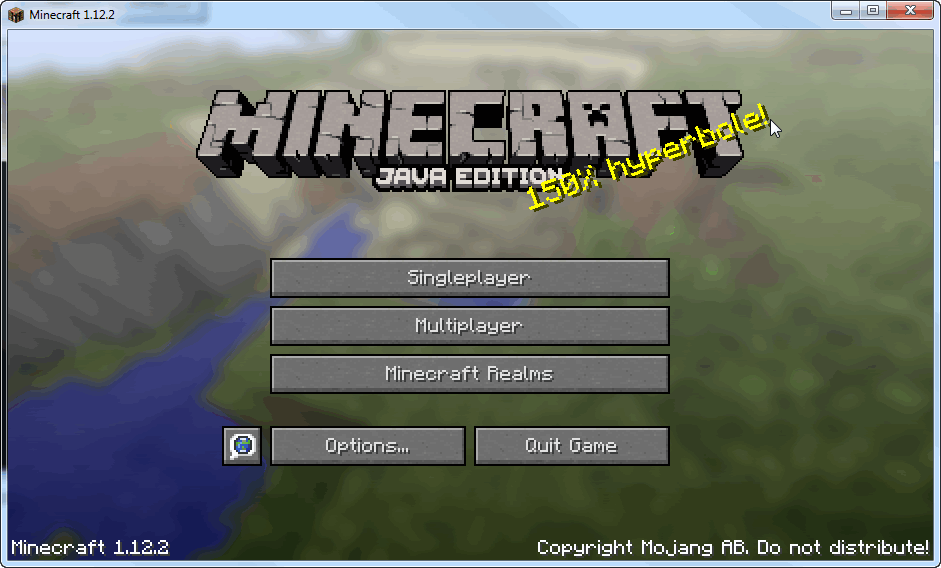
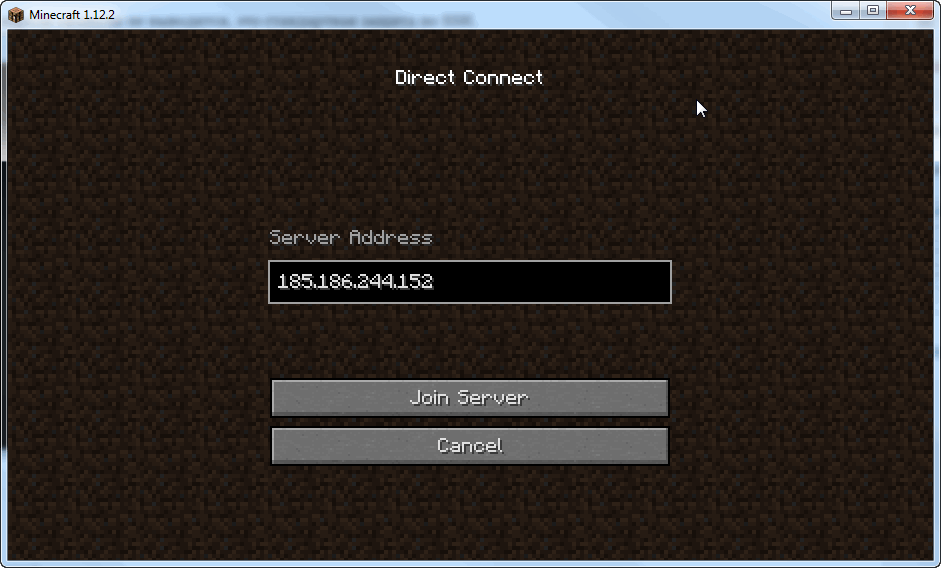
- Press Multiplayer, then DirectConnect (or AddServer) and input your server’s IP (for example, 185.186.244.152) and get connected

- If you see the error “Failed to login: Invalid session (Try restarting your game and the launcher)”

Open the file using command
# vim serverfiles/server.properties
Press INSERT button and proceed to the line with online-mode where you need to select false variables as shown in the picture

To quit the panel, press ESC and type :wq
Restart the server using # ./mcserver restart