
Gmail Drops POP3 and Send As in 2027: What to Do with cPanel Email
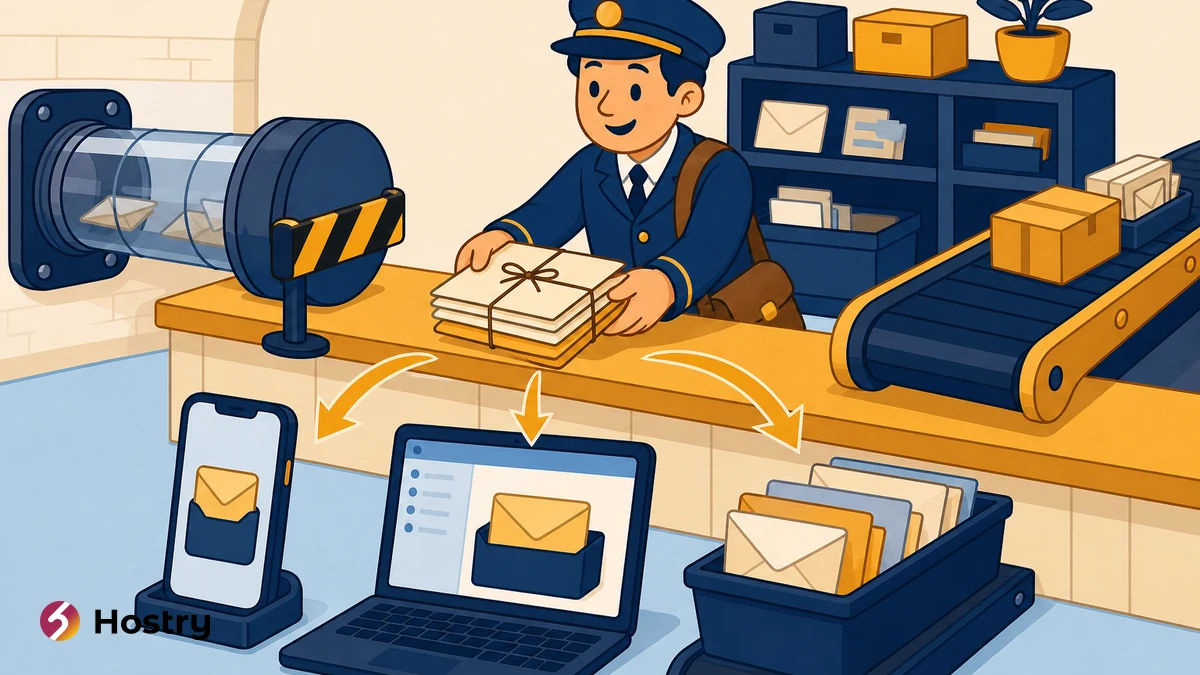
From January 2027, Gmail stops fetching mail from other accounts over POP and removes Send-as identities for outside addresses. If you read cPanel email in Gmail, a mailbox added separately to the Gmail app or to a mail client still reads and sends normally. The mailbox itself stays untouched; only the place you open it changes.
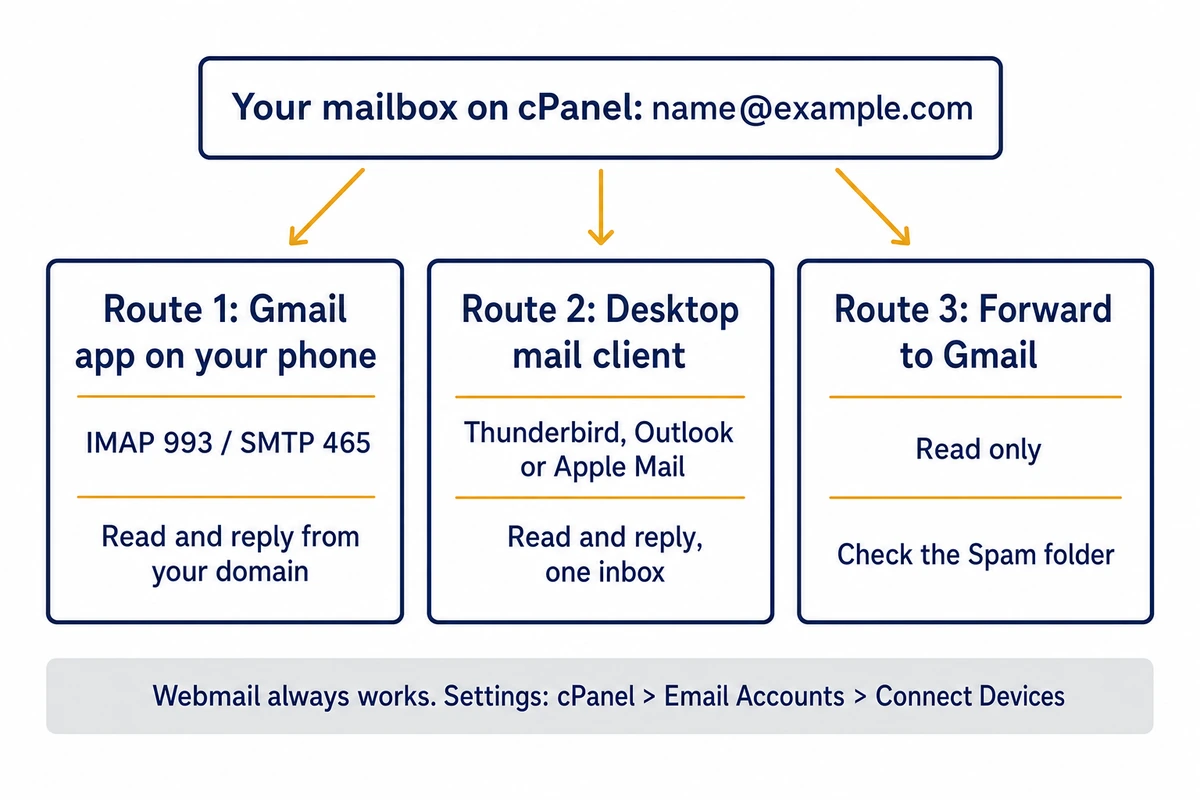
Three routes work after the change: the Gmail app on your phone over IMAP, a desktop program such as Thunderbird, Outlook or Apple Mail, or forwarding into Gmail for reading only. If your domain mail sits on cPanel web hosting, nothing on the server has to change, and your MX records stay as they are.
Is your cPanel email in Gmail affected?
Open Gmail on a computer, click the Settings gear, then See all settings, then the Accounts and Import tab (some accounts call it Accounts). Two sections matter:
- “Check mail from other accounts” lists every mailbox Gmail pulls in over POP3.
- “Send mail as” lists every address you can pick in the From field.
If an address on your own domain appears in either list, you are affected; write each one down. If domain mail shows up in Gmail but neither list mentions it, it probably arrives by forwarding already, which Google is keeping.
Whatever you find, the mailbox is reachable in a browser right now. In cPanel, open Email Accounts and click Check Email next to the address to open it in webmail.
What Google is removing from Gmail, and when
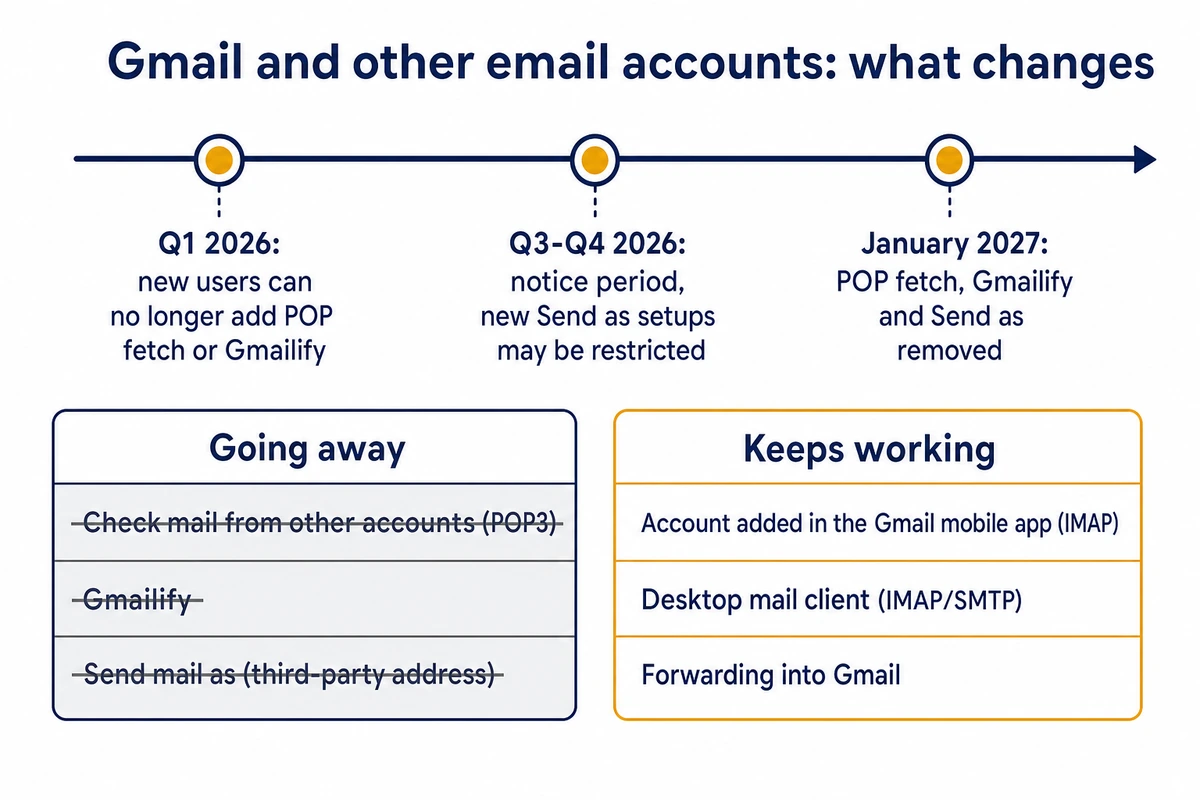
Google’s page on upcoming changes to Gmailify and POP in Gmail says that “Gmail will no longer support checking emails from third-party accounts through POP” and that the “Check mail from other accounts” option will no longer be available in Gmail on a computer.
New users lost the option first. The page says, “After the first quarter of 2026, this feature no longer supports new users.” Accounts that already had it “can still use the feature until January 2027.”
Gmailify, which applied Gmail’s spam filtering to a linked outside account, ends on the same schedule.
A second Google page, on third-party email account support in Gmail, covers Send as and gives the schedule. Affected users get an in-product notice in Q3 2026, and during the Q3 to Q4 transition Gmail may restrict new configurations. In January 2027 all three features are fully removed for third-party accounts. Google names no exact day; plan for January 1.
| Feature | Setting it up now | Already set up | From January 2027 |
|---|---|---|---|
| Check mail from other accounts (POP3) | Closed to new users after Q1 2026 | Works until January 2027 | Removed |
| Gmailify | Closed to new users after Q1 2026 | Works until January 2027 | Removed |
| Send mail as a third-party address | Gmail may restrict it from Q3 2026 | Works until January 2027 | Removed on the web and in the Gmail apps |
| Mailbox added inside the Gmail app (IMAP) | Allowed | Unchanged | Keeps working |
| Forwarding from your host to Gmail | Allowed | Unchanged | Keeps working |
Send mail as for third-party addresses ends in January 2027
Send mail as is the setting where you once typed your domain address together with your host’s SMTP server, username and password. Gmail could then put your domain in the From line. Google’s help page on third-party account support says that from January 2027 you can no longer “send mail from third-party email accounts in Gmail on the web or in the Gmail mobile apps.”
The same page also says, “You can continue to add and use non-Google accounts in the Gmail mobile app as you do today.” Google does not spell out how the two sentences fit together; our reading is that they describe two different setups.
A Send-as identity lives inside your Gmail account, so it showed up in the From menu on the web and on your phone alike, and it disappears from both. An account added inside the app is a separate mailbox that the app opens with your host’s own login. Google’s POP page confirms you can still “read and send emails from your other account” that way, over “a standard IMAP connection.”
Gmail on the web then has no way to answer from a domain address hosted outside Google. On a laptop, replies from your domain go through a mail client or webmail.
Find your mail server, ports and username in cPanel
Use these settings for the Gmail app or a mail client. Forwarding (Route 3) does not need them. Log in to cPanel, open Email Accounts in the Email section, and click Connect Devices next to the mailbox. That opens the Set Up Mail Client interface. Scroll to Mail Client Manual Settings and use the Secure SSL/TLS table:
| Field in your mail app | What to enter |
|---|---|
| Username | The full address, e.g. name@example.com |
| Password | The mailbox password (not your cPanel login) |
| Incoming server | The hostname shown in the Secure SSL/TLS table |
| IMAP port | 993, security SSL/TLS |
| POP3 port (only if you choose POP) | 995, security SSL/TLS |
| Outgoing (SMTP) server | The hostname shown in the same table |
| SMTP port | 465, security SSL/TLS |
Copy the hostname exactly as cPanel prints it. cPanel’s documentation says the secure settings use a name on your domain when the domain has a valid SSL certificate, and the server’s hostname otherwise. You might see mail.example.com in the first case and something like server1.example.net in the second; both are placeholders. A name typed from memory may not match the certificate.
Skip the second table, which cPanel marks Non-SSL and “NOT Recommended”. The Email Instructions box at the bottom mails the settings to any address, which is handy on the phone.
Route 1: add the mailbox to the Gmail app on your phone (IMAP)
This is the closest thing to today’s setup on a phone, and it is the one we would set up first. That advice rests on the Google statements quoted in the Send as section above, not on a test on our side. The steps follow Google’s page on how to add another email account to the Gmail app.
Android
- Open the Gmail app and tap your profile picture at the top right.
- Tap Add another account, then Other.
- Enter name@example.com, tap Next, and choose Personal (IMAP).
- Type the mailbox password and tap Next.
- On the server screens, enter the incoming hostname with port 993 and security type SSL/TLS. When the app asks for outgoing settings, use the outgoing hostname with port 465 and SSL/TLS.
- Finish the remaining screens to link the account.
iPhone and iPad
Tap your profile picture, then Add another account and Other (IMAP). Enter the full address, tap Next, and fill in the same values from Connect Devices.
If the app shows “Email security not guaranteed”, it offers to continue with the security type set to None. Google’s help page warns that an unsecured connection could expose your password. We would never choose None: the mailbox password would then travel in plain text, so fix the hostname or the certificate instead. Compare the hostname with Connect Devices character by character. A “Certificate not trusted” message usually points at the same mismatch; if the name is exact and the warning stays, ask your host.
We would pick IMAP even if the Android app also offers POP: messages stay on the server, so every device shows the same folders, at the cost of disk space on your plan.
Route 2: Thunderbird, Outlook or Apple Mail on the computer
On a laptop, a mail client is the only route that gives you one inbox and replies from your domain address. Google also says IMAP and POP “remain fully supported for accessing Gmail from other apps”, so the same program can show your Gmail account and the cPanel mailbox side by side.
Thunderbird
- Open Account Settings, click Account Actions at the bottom left, then Add Mail Account.
- Fill in the full address and the mailbox password, then press Continue.
- If Thunderbird guesses the wrong server, press Manual Configuration: IMAP on 993 and SMTP on 465, both SSL/TLS, with the cPanel hostnames and the full address as username.
- Press Re-test and save once it confirms the settings.
Apple Mail and Outlook
Connect Devices offers automatic setup scripts for macOS Mail.app and for iPhone and iPad. Click IMAP over SSL/TLS in your client’s row, click Proceed, and run the file. When it asks for a password, use the mailbox one. Outlook has no script. In classic Outlook for Windows (Microsoft 365, 2016 to 2024), Microsoft’s page on how to add an email account to Outlook for Windows starts at File » Add Account, then Advanced options and Let me set up my account manually; choose IMAP and enter the values from the table.
Webmail stays available whatever you choose. It is also the quickest way to tell whether a problem sits in the mailbox or in your app. Open the mailbox with Check Email in Email Accounts. If a message shows in webmail but not on your phone, the problem is in the phone settings.
Route 3: forward cPanel email to Gmail, for reading only
Google recommends automatic forwarding from your provider for people who want new mail to keep landing in Gmail on the web. In cPanel:
- Open Forwarders in the Email section and click Add Forwarder.
- In “Address to forward”, type the part of the address before the @, then pick the domain.
- Choose Forward to Email Address, enter your Gmail address and click Add Forwarder.
When a forwarder and a mailbox share an address, cPanel delivers to both, so a copy stays on the server.
Treat this route as read-only. Once Send as is gone, a reply written in Gmail on the web leaves from your @gmail.com address. Answer from the phone app, a mail client or webmail instead.
Forwarding also has a spam cost. A forwarded message reaches Gmail from your host’s server, yet its envelope sender (the bounce address servers use, separate from the visible From line) still names the original sender’s domain. That domain’s SPF record does not list your host. SRS rewrites the envelope sender to the forwarding server’s domain, so SPF passes on the forwarded hop. The WHM option is Enable Sender Rewriting Scheme (SRS) Support in Exim Configuration Manager, off by default. On shared hosting that is a server setting, so ask your provider whether it is on.
SRS does not help with DMARC. Under RFC 7489, the DMARC specification, a message passes when SPF or DKIM passes for a domain aligned with the From address, and a rewritten envelope belongs to your host. After forwarding, DMARC therefore depends on the sender’s DKIM signature arriving intact.
Google’s best practices for forwarding email to Gmail ask forwarders to “Change the envelope sender to reference your forwarding domain” and warn that “Messages that don’t pass DKIM are more likely to be sent to spam.” The same page notes that “Changes to message contents can cause messages to fail DKIM authentication,” which is why it asks forwarders to avoid changing the body and headers that DKIM protects. For the first two weeks, check Gmail’s Spam folder daily and mark real mail as Not spam. Do not forward the domain’s Default Address catch-all, which collects mostly junk.
Before January 2027: switch over in this order
Do the work in December at the latest, while cPanel email in Gmail still arrives the old way and can catch anything the new setup misses.
- Set up the new route on every device that answers mail for the domain, using the Connect Devices values.
- Send a test from name@example.com to an address at a different provider, then reply to it. Confirm the From line shows your domain and the reply lands in the cPanel mailbox.
- Open Email Deliverability in cPanel’s Email section. It reports the state of the domain’s DKIM, SPF, DMARC and reverse DNS records. Mail sent through the new route leaves from your host’s server, so those records have to cover it.
- Open webmail and check how far back the mailbox goes. Older mail that is missing there may have been removed from the server by the old POP setup; if so, it now survives only in Gmail.
- Delete the domain entries under “Check mail from other accounts” and “Send mail as” once the new route has worked for a week.
- Tell everyone who answers from the address, and use the Email Instructions box to send each of them the settings.
On step 3, the Email Deliverability documentation notes that Repair only works when the server controls the domain’s DNS. If your nameservers point elsewhere, such as the registrar, add the suggested records there yourself. If you are not sure which service answers for the domain, read up on how DNS records and nameservers work before you edit anything.
FAQ
Will I lose the emails Gmail already imported?
No. Google states that messages synced before the deprecation stay in Gmail. A new IMAP connection, though, shows only what is still on the cPanel server. If your old POP setup deleted messages from the server after fetching them, that older mail now lives only in your Gmail account.
Can I still reply from my domain address in Gmail on a laptop?
Not with a mailbox hosted outside Google. After January 2027 the only way to do that in Gmail on the web is to host the domain’s mail in Google Workspace, which Google suggests for custom domains.
Does this affect Gmail aliases or Google Workspace addresses?
No. Google says the change applies only to third-party accounts, and that sending from other Gmail addresses or Workspace aliases stays the same.
If you were already planning to move your site and mail, Hostry web hosting with cPanel includes webmail, and we transfer accounts from another cPanel host free of charge.